• Home
  • Shop
  • About
  • Disclosure Policy
Menu

Gibb+Co Studio

  • Home
  • Shop
  • About
  • Disclosure Policy
gcs_blog_feature photo_christmas photocard diy.jpg

How to DIY your Christmas Photocard with Templett with video

September 30, 2020

Who doesn’t want to save money? Templett is an awesome online app you can use right in your browser without downloading ANYTHING!  

Read on for a step by step video tutorial on inserting your photo for a unique DIY Christmas Photocard.

This post and the photos within it contain affiliate links. If you purchase something through the link, I may receive a commission at no extra charge to you.  Full disclosure here.

First off, you can purchase so many template options in the ETSY marketplace. While this post focuses on using Templett online app, some shops sell templates for Photoshop templates (for photographers & creatives who know how to use Photoshop, see my post here on using photoshop templates), while others use Corjl app.

This tutorial is specifically for Templett app photo cards. My shop for Templett Christmas photo cards can be found here.

The only requirement is you have to edit using your desktop computer or laptop. At the time of the writing, you aren’t able to use your phone or tablet to edit your information. Sorry. Maybe things will change in the near future. Hopefully. J

Once you purchase the template, you will be sent a login from Templett. Sometimes it ends up in your spam or junk folder so be sure to look there. If you don’t have the original email link from Templett, you can still access your templates using the ETSY order number and the email associated with ETSY.

You can watch the video below or read the step by step instructions beneath the video.

Step 1

Once login is successful, you will need to click on the “templates” icon to access your purchased templates…see below.

Step 2

You can now see all the templates you purchased appear. Simply click on the template you want to edit. If you already have a Templett account, maybe you purchased a previous Templett template, your new template will be added to your account library.

Step 3A - for most of my photo card templates

Upload your image.

Click on “Elements”, then “new elements”.

It will prompt you to find your image from your computer files and ask you to insert a tag name. I usually use a brief description. After doing so, you can click on the “add” button. Depending on the file size, it may think for a few seconds, then say “element added” with a check mark.

Then you can go back to the “elements” icon and you should see your image in the library.

Click on the image and it will appear in your template.

You can scale the image up or down using the upper or bottom corners. Once it’s the size you like, you need to send the photo back behind the artwork using the “send backward” icon.

Click on the text box to edit in your family name. The text box should have blue squares at each corner and along the midpoints. Resize by adjusting using the corner square while holding down “command” for mac users or “control” for pc users on your keyboard. Be sure to use the combination to get a scaled proportion adjustment.

 You can add an additional text box, by clicking on the “text” icon and typing within the text box.

You can change the font if you prefer something else by clicking on the font for the drop down options.

Step 3B - for my more complex watercolor photo cards in which the artwork is large

Upload your image.

Click on “Elements”, then “new elements”.

It will prompt you to find your image from your computer files and ask you to insert a tag name. I usually use a brief description. After doing so, you can click on the “add” button. Depending on the file size, it may think for a few seconds, then say “element added” with a check mark.

Then you can go back to the “elements” icon and you should see your image in the library.

Click on the image and it will appear in your template.

You can scale the image up or down using the upper or bottom corners.

Once it’s the size you like, you need to send the photo back behind the artwork using the “send backward” icon. IMPORTANT — due to the layers involved with my more complex designs, keep clicking on the “send backward” icon until your images is under the frame layer as well as the text and artwork layers.

Click on the text box to edit in your family name. The text box should have blue squares at each corner and along the midpoints. Resize by adjusting using the corner square while holding down “command” for mac users or “control” for pc users on your keyboard. Be sure to use the combination to get a scaled proportion adjustment.

 You can add an additional text box, by clicking on the “text” icon and typing within the text box.

You can change the font if you prefer something else by clicking on the font for the drop down options.

IMPORTANT — IF YOU NEED TO MOVE THE IMAGE/SHIFT UP OR DOWN OR LEFT OR RIGHT, YOU WILL NEED TO MOVE THE ARTWORK LAYER FIRST — SEE VIDEO around 2:45 mark. WHEN YOUR IMAGE IS IN THE CORRECT LOCATION YOU CAN SHIFT THE ART WORK LAYER BACK IN THE ORIGINAL POSITION.

Step 4

Once all editing is complete and you’ve checked the spelling, you need to SAVE your changes. DOUBLE CHECK YOUR SPELLING AS THERE IS NOT A SPELLCHECK in the Templett system at the time of this writing.

When you’re ready to download, click “download” which will prompt you to select from the dropdown menu…pdf, jpeg, and png options.

If you plan on using a professional printer,most prefer a print ready formatted pdf with bleed all around. To download that option, see below…you need to select the “show bleed” then “create pdf”.

If you plan to use a professional printer, I recommend Prints of Love.  My shop has partnered with them to offer fast, high quality yet affordable printing.  Plus free 2-3 day U.S. shipping and free envelopes!

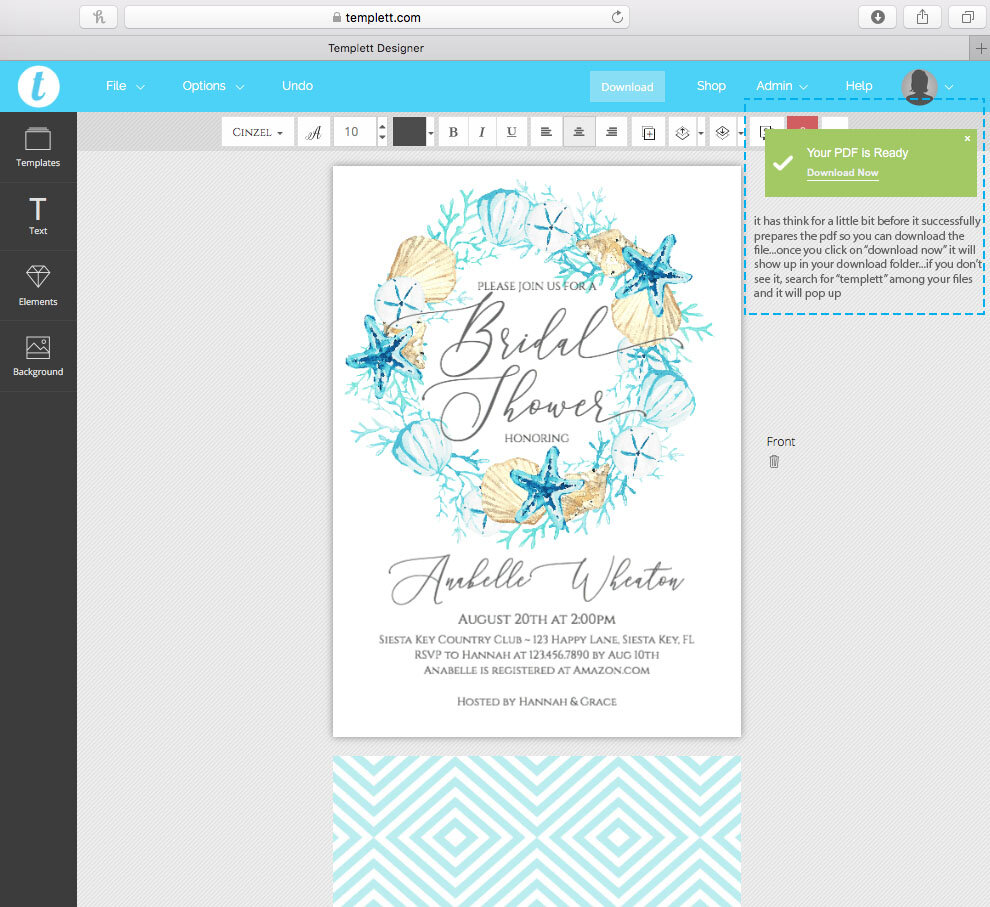
Templett will think for a few minutes while it prepares the file. Once it’s ready, it will show the prompt in the upper right hand side of your window…see below. Click on “download now”. You will be able to find it in your download folder. If you don’t see it, you can search for “templett” among your downloaded files and it will appear.

If your print vendor prefers a jpeg format, downloading in a jpeg format is what you’ll want to select. I would select the 300 dpi for high resolution.

If you plan on printing at home and saving paper with a 2 per page formatthat you trim yourself, you will need to select, “download”, “pdf” then make sure “show bleed”, “show trim marks”, and “save paper” have been selected before you select “create pdf”. 

Once the download is ready, click “download now”. You will see the 2 per page format…see below. When printing yourself, use white card stock paper and use the front trim marks as a guide to trim the invitation down to the finished size. I recommend A7 envelopes like these, which you can also customize and print the recipients names as well as your return address. See here to the tutorial.

If you plan on posting to your social media, or emailing, or texting, downloading in a jpeg format is what you’ll want to select. I would select the 300 dpi for high resolution.

Hopefully my video tutorial has helped you edit your template.

In case you missed it, check out the Templett tutorial series…

Part 1…How to edit and print a template using Templett

Part2…How to Add a Photo to your Photocard template using Templett

Part 3…How to edit and print envelope templates using Templett

Part 4…How to edit and print place card templates using Templett

Happy designing!

Gibb

In Templett, Tutorial, Watercolor
gcs_blog_feature photo_part2 templett tutorial.png

How to Add a Photo to your Photocard template using Templett - Part 2 in Templett Tutorial Series

October 7, 2019

The holidays are coming which means photocard season is upon us. So many options to choose from…you can find some from my shop or other shops from ETSY. Either way it may help those with a do-it-yourself mentality to trim down the cost from purchasing directly from specialty stores. Read on for a step by step tutorial on how to add a photo to your photocard template using the Templett app, part 2 in my Templett tutorial series.

This post and the photos within it contain affiliate links. If you purchase something through the link, I may receive a commission at no extra charge to you.  Full disclosure here.

I sell Photoshop templates for Photographers or creatives who have Photoshop here as well as Templett templates found here. 

Photoshop templates are for professional photographers OR creatives comfortable with AND have Photoshop. Because of it’s power, you can get multiple photos easily within your template, so if you have lots of photos to show off, that would be the best way to go.

For those who only want to feature a single image, Templett is an awesome online app you can use right in your browser without downloading ANYTHING!    

If you can use Microsoft PowerPoint, you can easily use Templett. I’ve tried lots of programs and I think it is really user friendly.

This post is for anyone wanting to insert a photo into their Templett template in easy steps. I’ve included lots of pictures to help!

First off, you can purchase so many template options in the ETSY marketplace. I have a shop for holiday photocards here…all things wedding related here like Photo save the dates or Photo thank you cards here. 

Of course, there are so many shops that sell templates you can choose from. The only requirement is you have to edit using your desktop computer or laptop. At the time of the writing, you aren’t able to use your phone or tablet to edit your information. Sorry. Maybe things will change in the near future. Hopefully. J

Once you purchase the template, you will be sent a login from Templett. Sometimes it ends up in your spam or junk folder so be sure to look there. If you don’t have the original link, you can still access your templates using the ETSY order number and the email associated with ETSY.

Step 1

Once login is successful, you will need to click on the “templates” icon to access your purchased templates…see below.

gcs_templett_part2_howto1.jpg

Step 2

You can now see all the templates you purchased appear. Simply click on the one you want to edit first.

Step 3

Now you can add the photo you’d like to feature. Start by clicking on “elements” on the left side of your window. To the left of the search bar, you need to click on the lined icon which will give you a drop down menu… select “new element”.

gcs_templett_part2_howto2.jpg

Step 4

Add a tag to your photo so you can find it easily…use your name or whatever tag you’d like. Then click on the big “upload element files here”. Once you find the images, click “add”.

gcs_templett_part2_howto3.jpg

Step 5

Now that you’ve added your image, you can now find it by clicking on “elements” to the left side for the element options. Click on your desired image and it will show up in your template…see below.

It may be too big so you’ll need to resize it. To resize the image, use the CORNER button while holding the command button (mac) or control button (pc). This way you will maintain the correct proportion without a weird skew or stretch of the image. 

gcs_templett_part2_howto4.jpg

Step 6

Next up, click on the text box. The text box should have blue squares at each corner and along the midpoints. Resize by adjusting using the corner square while holding down “command” for mac users or “control” for pc users on your keyboard. Be sure to use the combination to get a scaled proportion adjustment.

You can add a text box, by clicking on the “text” icon and typing within the text box.

*Be sure to check out my Part 1 Templett tutorial to walk you though all the ways you can change text…change the font…play with glyph for styling purposes…change font sizes…font colors…alignment…copy text…adjust styling to show all caps or all lowercase…change the space between lines of text…or change space between letters.

gcs_templett_part2_howto5.jpg

Step 7

Once all editing is complete and you’ve checked the spelling, date, event location, etc. you will need to download the file. DOUBLE CHECK YOUR SPELLING AS THERE IS NOT A SPELLCHECK in the Templett system at the time of this writing.

When you’re ready to download, click “download” which will prompt you to select from the dropdown menu…pdf, jpeg, and png options.

If you plan on using a professional printer, most prefer a print ready formatted pdf with bleed all around. To download that option, see below…you need to select the “show bleed” then “create pdf”.

Templett will think for a few minutes while it prepares the file. Once it’s ready, it will show the prompt in the upper right hand side of your window…see below. Click on “download now”. You will be able to find it in your download folder. If you don’t see it, you can search for “templett” among your downloaded files and it will appear.

If you plan to use a professional printer, I recommend Prints of Love.  My shop has partnered with them to offer fast, high quality yet affordable printing.  Plus free 2-3 day U.S. shipping and free envelopes!

If you plan on printing at home and saving paper with a 2 per page format that you trim yourself, you will need to select, “download”, “pdf” then make sure “show bleed”, “show trim marks”, and “save paper” have been selected before you select “create pdf”. 

Once the download is ready, click “download now”. You will see the 2 per page format…see my part 1 Templett tutorial here for examples here. When printing yourself, use white card stock paper and use the front trim marks as a guide to trim the invitation down to the finished size. I recommend using A7 envelopes like these for the 5” x 7” photo cards. You can also further personalize the envelopes with your return address here, see the tutorial here.

gcs_templett_part2_howto6.jpg

If you plan on posting to your social media, or emailing, or texting, downloading in a jpeg format is what you’ll want to select. I would select the 300 dpi for high resolution.

gcs_templett_part2_howto7.jpg

Hopefully my pictorial tutorial has helped you edit your template.

In case you missed it, check out the Templett tutorial series…

Part 1…How to edit and print a template using Templett

Part2…How to Add a Photo to your Photocard template using Templett

Part 3…How to edit and print envelope templates using Templett

Part 4…How to edit and print place card templates using Templett

Happy creating!

Gibb

In Templett, Tutorial, Watercolor
gcs_blog_feature_templett tutorial_part1.png

How to Edit and Print a Template using Templett - Part 1 in Templett Tutorial Series

October 5, 2019

Who doesn’t want to save money? Templett is an awesome online app you can use right in your browser without downloading ANYTHING!  I used to sell pdf templates to help the do-it-yourself  creative save money but unfortunately, some people found downloading the FREE Adobe Reader DC difficult and some ended up purchasing the Adobe Suites, etc. I spent so much time walking people through the whole process. 

It was a headache for me and I’m sure some customers as well which was a real bummer since all I wanted to do was to help people save money and get a great looking product.

Since then, I’ve discovered Templett, which I feel, is really user friendly. It has so many aspects reminiscent of using PowerPoint.

Read on for a step by step tutorial in editing and printing a template within the Templett app. 

This post and the photos within it contain affiliate links. If you purchase something through the link, I may receive a commission at no extra charge to you.  Full disclosure here.

First off, you can purchase so many template options in the ETSY marketplace. I have a shop for social invitations here…all things wedding related here… and business marketing items here. Of course, there are so many shops that sell templates you can choose from. The only requirement is you have to edit using your desktop computer or laptop. At the time of the writing, you aren’t able to use your phone or tablet to edit your information. Sorry. Maybe things will change in the near future. Hopefully. J

Once you purchase the template, you will be sent a login from Templett. Sometimes it ends up in your spam or junk folder so be sure to look there. If you don’t have the original link, you can still access your templates using the ETSY order number and the email associated with ETSY.

Step 1

Once login is successful, you will need to click on the “templates” icon to access your purchased templates…see below.

gcs_templett_part1_howto1.jpg

Step 2

You can now see all the templates you purchased appear. Simply click on the one you want to edit first.

gcs_templett_part1_howto2.jpg

Step 3

Click on the text box. The text box should have blue squares at each corner and along the midpoints. Resize by adjusting using the corner square while holding down “command” for mac users or “control” for pc users on your keyboard. Be sure to use the combination to get a scaled proportion adjustment.

 You can add a text box, by clicking on the “text” icon and typing within the text box.

gcs_templett_part1_howto3.jpg

See below all the ways you can change text…change the font…play with glyph for styling purposes…change font sizes…font colors…alignment…copy text…adjust styling to show all caps or all lowercase…change the space between lines of text…or change space between letters.

gcs_templett_part1_howto4.jpg
gcs_templett_part1_howto5.jpg

Step 4

Once all editing is complete and you’ve checked the spelling, date, event location, etc. you will need to download the file. DOUBLE CHECK YOUR SPELLING AS THERE IS NOT A SPELLCHECK in the Templett system at the time of this writing.

When you’re ready to download, click “download” which will prompt you to select from the dropdown menu…pdf, jpeg, and png options.

If you plan on using a professional printer,most prefer a print ready formatted pdf with bleed all around. To download that option, see below…you need to select the “show bleed” then “create pdf”.

If you plan to use a professional printer, I recommend Prints of Love.  My shop has partnered with them to offer fast, high quality yet affordable printing.  Plus free 2-3 day U.S. shipping and free envelopes!

gcs_templett_part1_howto5B.jpg

Templett will think for a few minutes while it prepares the file. Once it’s ready, it will show the prompt in the upper right hand side of your window…see below. Click on “download now”. You will be able to find it in your download folder. If you don’t see it, you can search for “templett” among your downloaded files and it will appear.

If you plan on printing at home and saving paper with a 2 per page formatthat you trim yourself, you will need to select, “download”, “pdf” then make sure “show bleed”, “show trim marks”, and “save paper” have been selected before you select “create pdf”.  If you plan on printing at home, I use HP envy as my work horse in my small business.

gcs_templett_part1_howto7.jpg

Once the download is ready, click “download now”. You will see the 2 per page format…see below. When printing yourself, use white card stock paper and use the front trim marks as a guide to trim the invitation down to the finished size. I recommend A7 envelopes like these, which you can also customize and print the recipients names as well as your return address. See here to the tutorial.

gcs_templett_part1_howto8.jpg

backside

gcs_templett_part1_howto9.png

If you plan on posting to your social media, or emailing, or texting, downloading in a jpeg format is what you’ll want to select. I would select the 300 dpi for high resolution.

gcs_templett_part1_howto10.jpg

Hopefully my pictorial tutorial has helped you edit your template.

In case you missed it, check out the Templett tutorial series…

Part 1…How to edit and print a template using Templett

Part2…How to Add a Photo to your Photocard template using Templett

Part 3…How to edit and print envelope templates using Templett

Part 4…How to edit and print place card templates using Templett

EDITED APRIL 2020…

I made some videos for those who prefer videos…

This video is about Using Templett app to edit your invitation template

For those editing for branding thank you tags or party favor tags or anything that involves multiples per page, see this video…

This video is about Using Templett app to edit your template

Happy designing!

Gibb

In Templett, Tutorial, Watercolor
style_roses_elsbethgeorge EG076.png
style_roses_elsbethgeorge EG081.png
style_roses_elsbethgeorge EG082.png
style_roses_elsbethgeorge_EG085.png

Holiday Collection 2019 for Elsbeth + George available now!

August 5, 2019

Holiday 2019 Photoshop template Collection for Elsbeth & George is available now. Perfect for photographers to offer their clients for the holiday season. These templates can also be used by the creatives who are comfortable using Photoshop. For the complete collection check out the Photoshop template shop here.

This post and the photos within it contain affiliate links. If you purchase something through the link, I may receive a commission at no extra charge to you.  Full disclosure here.

Check out our tutorial on inserting images into clipping mask here.

Happy creating!

Gibb

In Illustration, Photoshop, Watercolor
gcs_blog_feature photo_blue mothers floral card.png

Watercolor Time Lapsed video

May 1, 2019

Painting has always been cathartic for me. It eases the stress away, that’s what’s so great about watercolors. It’s not expensive. All you need is paper, a brush and a cup of water.

No need to fear being judged. Watercolor is very forgiving. If you “mess up” you can flood the area with water and happily dab up the paint.

How awesome is that?!

My father is a master while I dabble and I’m okay with that. I used to sit in on his classes and workshops and play while he taught. He has a fine artist’s approach and I have an illustrator’s approach.

It’s all good.

I don’t have a photo realistic take on watercolor painting. My take is more whimsical and not entirely real but I have loads of fun painting. 

Check out my time lapsed video on painting whimsical blue flowers. Maybe it’ll help get you started. Turn on your favorite music, have a mini dance party and get started.

I’ve included a link to a freebie Mother’s Day printable card as part of our Freebie Library. So be sure to subscribe for access.

Also be sure to check out my post on Things to Know for Beginner Watercolorist.

Happy creating!

Gibb

In Illustration, Tutorial, Watercolor

Latest Posts

Featured
Sep 30, 2020
How to DIY your Christmas Photocard with Templett with video
Sep 30, 2020
Sep 30, 2020
Oct 13, 2019
How to Edit & Print Place Card templates using Templett - Part 4 in Templett Tutorial series
Oct 13, 2019
Oct 13, 2019
Oct 7, 2019
How to Add a Photo to your Photocard template using Templett - Part 2 in Templett Tutorial Series
Oct 7, 2019
Oct 7, 2019
Oct 5, 2019
How to Edit and Print a Template using Templett - Part 1 in Templett Tutorial Series
Oct 5, 2019
Oct 5, 2019
Oct 4, 2019
Step-by-step guide on how to insert photos into a clipping mask with a Photoshop PSD template
Oct 4, 2019
Oct 4, 2019
Aug 2, 2019
Beginner's Step-by-step guide on how to insert photos into a Photoshop PSD template
Aug 2, 2019
Aug 2, 2019

Subscribe

Sign up with your email address to receive news and get access to our Freebie Library.

We respect your privacy.

Thank you! Your Freebie Library password is:

pbandj

Thank you!

Gibb

Custom save the date for a destination wedding
Italy vibes
Custom trifold mockup for a client's Chicago wedding event.
We almost didn't go to Grand Central Station because we were so tired but I'm so glad my brother made sure I didn't miss it. Stunning in real life.
New Orleans custom wedding map for a client. Love taking my kids there...incredible food and music, stunning architectural details and interesting history.
Inspired by my mom's love for blue and white porcelain containers.
Tropical semi custom collection with custom map
Happy Mother's Day to all the moms, bonus moms and single parents who are both mom and dad! Hope you're enjoying your special day.

Powered by Squarespace