• Home
  • Shop
  • About
  • Disclosure Policy
Menu

Gibb+Co Studio

  • Home
  • Shop
  • About
  • Disclosure Policy
gcs_blog_feature photo_happy fall sticker file.jpg

Fall Sticker Freebie

October 7, 2020
 

Fall is my favorite season. I love the colors, the cooler weather and the excuse to wear fall season clothing. My fellow Floridians can totally relate to this. We basically live in paradise but it’s definitely nice to have a change of season.

This post and the photos within it contain affiliate links. If you purchase something through the link, I may receive a commission at no extra charge to you.  Full disclosure here.

Today’s freebie is dedicated to “Happy Fall”. I used the app Procreate on my iPad to create this cute little sticker design for my subscribers. If you have a Cricut or Silhouette machine you can use the sticker design to print and cut your very own stickers to decorate your planner!

Taking Skillshare classes has really improved my creative game. From Skillshare I learned how to draw on Procreate and how to letter in the modern calligraphy style of writing. If you haven’t signed up for Skillshare, you can use this link to get two free months of classes! They have so many types of classes beyond creative skills try the classes from business, marketing, lifestyle, photography, music, writing and more. I have a watercolor on there so be sure to check my class out. :-)

Also, I’ve created a time lapsed video for those wanting to see how I used Procreate to create the Happy Fall sticker design. The Freebies can be found in the Library for subscribers. As always, freebies are for personal use only. By downloaded my files you accept my policy. If you haven’t subscribed, you can sign up below. Have fun!

Happy creating!

Gibb

In Freebie, Illustration Tags painting, illustration, freebie
gcs_blog_feature photo_aloe video tutorial.jpg

Watercolor Beginner Tutorial + Freebie Puny Aloe Printable Card

September 23, 2020
 

I painted this aloe for my very puny, very beautiful oldest mermaid. Something about puns cracks her up and now our running family jokes revolve around puns.

Check out this video tutorial where I walk you through how I painted this aloe. I walk you through the colors I’ve used along with the approach and reasons. For those interested in starting watercolor painting, it’s super fun. Watch the video and see how easy it is. You don’t have to use fancy watercolors. I give you alternative names for colors to use rather than a specific name.

I’ve also put the puny printable card in my bank of freebie items. If you’re a subscriber, feel free to head on over to download your copy.

gcs_blog_freebie_aloe dahling.jpg

Also, I’ve created a time lapsed video for those wanting to play and paint. The Freebies can be found in the Library for subscribers. If you haven’t subscribed, you can sign up below. Have fun!

Happy painting!

Gibb

In Freebie, Illustration Tags painting, illustration, freebie
gcs_blog_feature photo_how to paint whimsical florals.jpeg

Freebie Thank you card

February 28, 2020
 

It’s March in Florida which means gorgeous sunny weather with the occasional cold days. Of course it’s nothing like our northern friends experience but it allows us sweater and boot days.

This post and the photos within it contain affiliate links. If you purchase something through the link, I may receive a commission at no extra charge to you.  Full disclosure here.

I’ve painted some whimsical flowers and created some freebies…printable thank you cards as well as blank cards for you to personalize if you’d like. Add your name and print out personalized cards or if you want to practice your writing, you can personalize the card with the recipient’s name. If your writing isn’t legible and you want the pretty calligraphy look, you can support the designer of the font and get this pretty calligraphy font here from Creative Market.

gibbcostudio_february2020_floral.jpg
gibbcostudio_february2020_floral2.jpg

Also, I’ve created a time lapsed video for those wanting to play and paint. The Freebies can be found in the Library for subscribers. If you haven’t subscribed, you can sign up below. Have fun!

Time lapsed video of painting whimsical flowers Music credit BenSound "Hey".

Happy painting!

Gibb

In Freebie, Illustration Tags painting, illustration, freebie
gcs_blog_feature photo new years card.jpeg

Step-by-step guide on how to insert photos into a clipping mask with a Photoshop PSD template

October 4, 2019

Clipping mask used to scare me but honestly, it’s pretty simple once you know the steps. Follow below for a step by step guide to inserting your photos into a clipping mask Photoshop template. There are many ETSY shops that have multiple clipping masks within a template for many photo options. My example shows a single photo option. If you’re a subscriber to our newsletter, you can download the freebie Photoshop template from our Freebie Library.

This post and the photos within it contain affiliate links. If you purchase something through the link, I may receive a commission at no extra charge to you.  Full disclosure here.

Step 1

Open up your photoshop template. Turn off the eye icon to the “delete this layer” border. This border shows your approximate trim line. This is important if you have important text here the edge.

gcs_clip mask_how to1.jpg
eg_shop etsy banner.jpg

Step 2

If you don’t want the faux gold lettering artwork and prefer a flat color, turn on the eye icon next to the “color change” layer. To change color, double click on the small square within the color for the eye dropper properties to change the color layer.

gcs_clipping mask_howto2.jpg

See below for the color! No gold now.

gcs_clipping mask_howto3.jpg

Step 3

Open the image you want to insert and copy the entire image…see below. Remember Command A/Command C for Mac users and Control A/Control C for PC users.

gcs_clipping mask_howto4.jpg

Step 4

Paste the image into the Photoshop template…be sure to click on the clipping mask shape for it to paste above the clipping mask layer…use Command V (Mac) or Control V (PC users)…see below. It should be between the shape AND the “your image here” layer.

gcs_clipping mask_howto5.jpg

Step 5

Turn off the eye icon to the “your image here” layer…see below.

gcs_clipping mask_how to6.jpg

Step 6

Move your image until it’s where you want it to be. Command T for Mac users and Control T for PC users.

gcs_clipping mask_howto7.jpg
gcs_blog_banner_template_senior photos.jpg

Step 7

Edit in your family name, date, text by clicking on the text.

Step 8

Once everything is perfect, you can flatten the layers by selecting…”Layer”…go to the bottom to…”Flatten Image”.

gcs_clipping mask_howto8.jpg

It will ask if you want to discard hidden layers, click “ok”.

gcs_clipping mask_howto9.jpg

Step 9

Click “save as” and select the Photoshop pdf format. Be sure to name it with your name.

gcs_clipping mask_howto10.jpg

And that’s it! Pretty easy, right?!

Now you can upload it to your favorite online print vendor.

If you plan to use a professional printer, I recommend Prints of Love.  My shop has partnered with them to offer fast, high quality yet affordable printing.  Plus free 2-3 day U.S. shipping and free envelopes!

If you plan on printing at home, I use HP envy as my work horse in my small business. Until next time, happy designing!

Gibb

 
gcs_subscribe4freebie access button_newyearcard.jpeg

In Illustration, Freebie, Photoshop, Tutorial Tags photo
style_roses_elsbethgeorge EG076.png
style_roses_elsbethgeorge EG081.png
style_roses_elsbethgeorge EG082.png
style_roses_elsbethgeorge_EG085.png

Holiday Collection 2019 for Elsbeth + George available now!

August 5, 2019

Holiday 2019 Photoshop template Collection for Elsbeth & George is available now. Perfect for photographers to offer their clients for the holiday season. These templates can also be used by the creatives who are comfortable using Photoshop. For the complete collection check out the Photoshop template shop here.

This post and the photos within it contain affiliate links. If you purchase something through the link, I may receive a commission at no extra charge to you.  Full disclosure here.

Check out our tutorial on inserting images into clipping mask here.

Happy creating!

Gibb

In Illustration, Photoshop, Watercolor
gcs_blog_feature photo_grad template.png

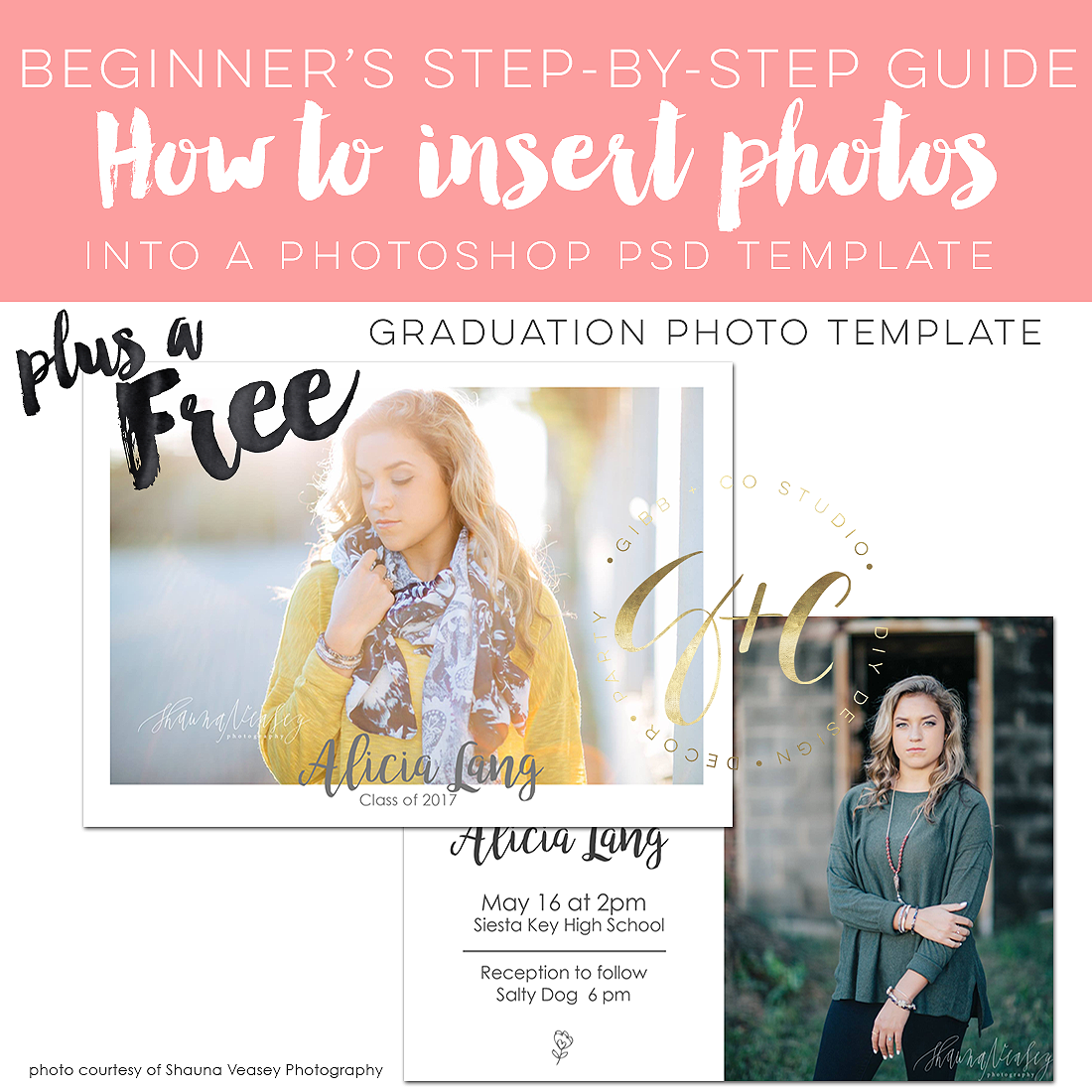
Beginner's Step-by-step guide on how to insert photos into a Photoshop PSD template

August 2, 2019

If you’re looking to save money on graduation announcements, save the dates, Christmas cards and so on, read on. For this tutorial, you’ll need Photoshop and a Photoshop template. There are many ETSY shops that provide graduation or seniors templates. If you’re a subscriber to our newsletter, you can download the freebie Photoshop template from our Freebie Library.

This post and the photos within it contain affiliate links. If you purchase something through the link, I may receive a commission at no extra charge to you.  Full disclosure here.

Step 1

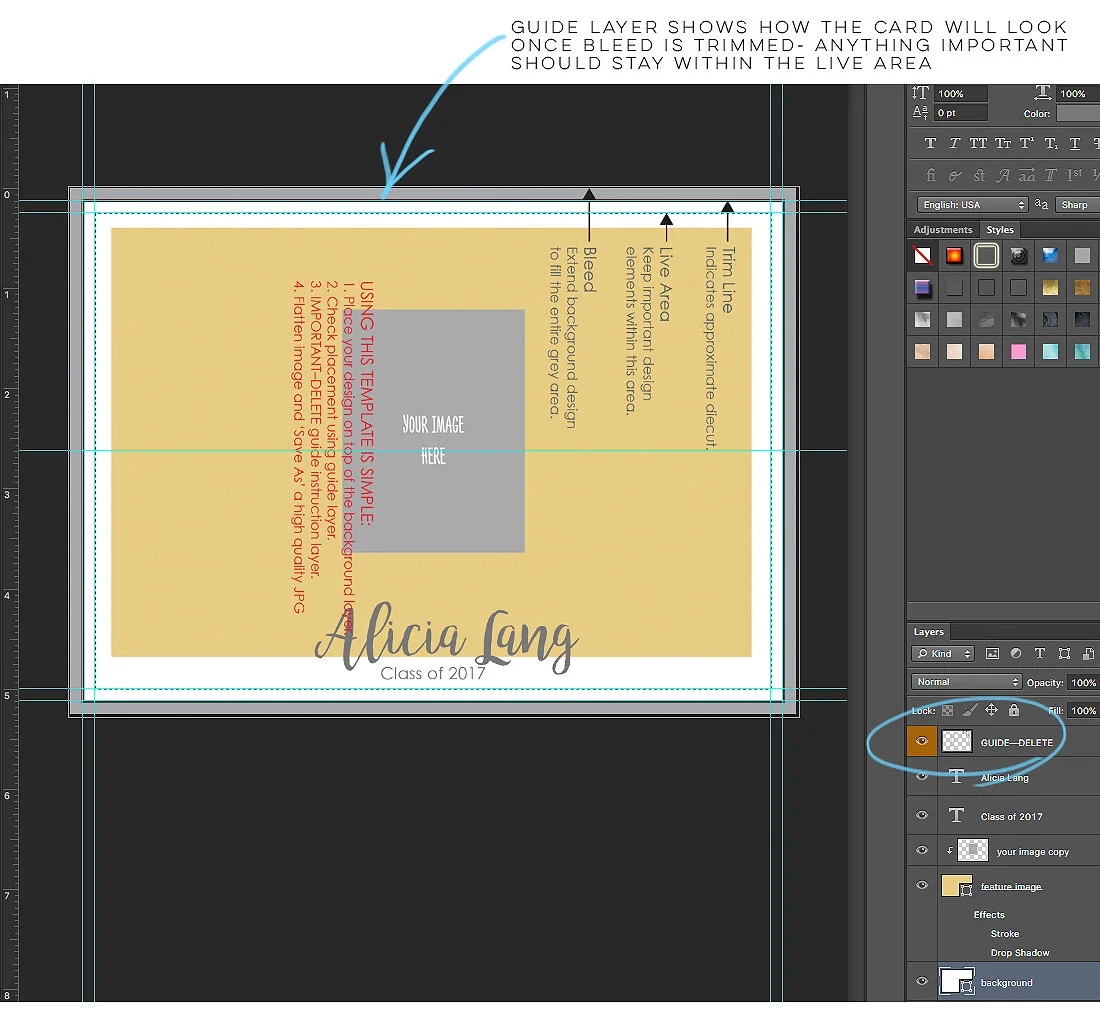
Open up your photoshop template. Turn off the eye icon to the “delete this layer” border. This border shows your approximate trim line. This is important if you have important text here the edge.

gcs_how to_1.jpg
gcs_how to2.jpg

Step 2

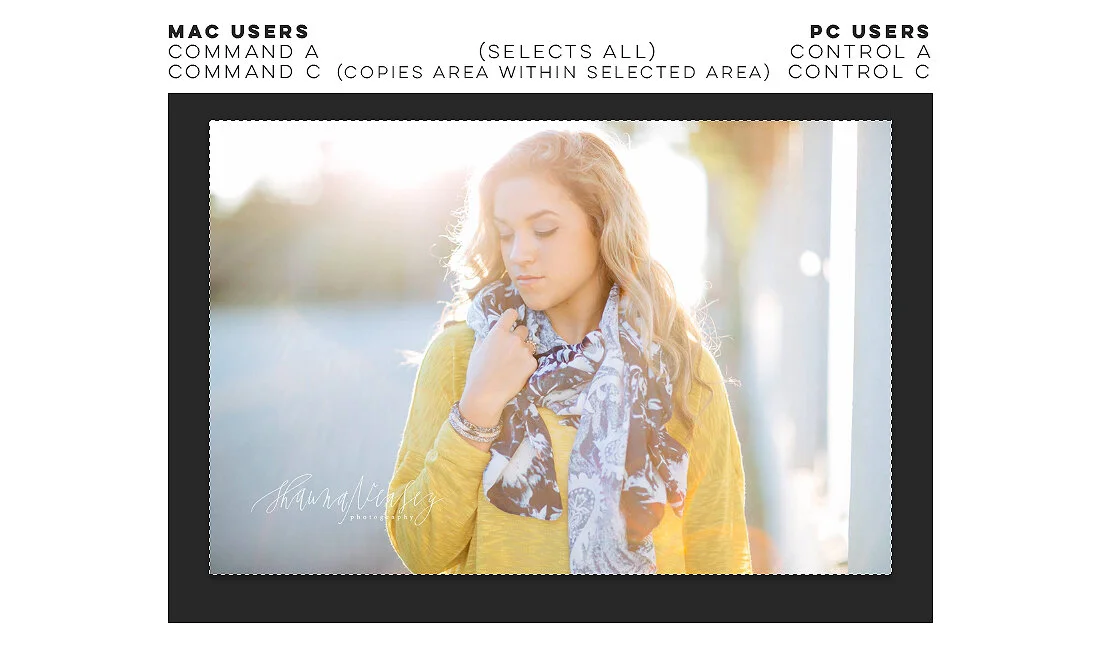
Open the image you want to insert and copy the entire image…see below. Remember Command A/Command C for Mac users and Control A/Control C for PC users.

gcs_how to_3.jpg

Step 3

Paste the image into the Photoshop template…be sure to click on the clipping mask shape for it to paste above the clipping mask layer…use Command V (Mac) or Control V (PC users)…see below. It should be between the shape AND the “your image here” layer.

Step 4

Turn off the eye icon to the “your image here” layer…see below.

Step 5

Move your image until it’s where you want it to be. Command T for Mac users and Control T for PC users.

gcs_how to_4.jpg

Step 6

Edit in the name, date, text by clicking on the text.

gcs_how to_5.jpg

Step 7

Be sure to keep saving the file and rename it to your name.

Step 8

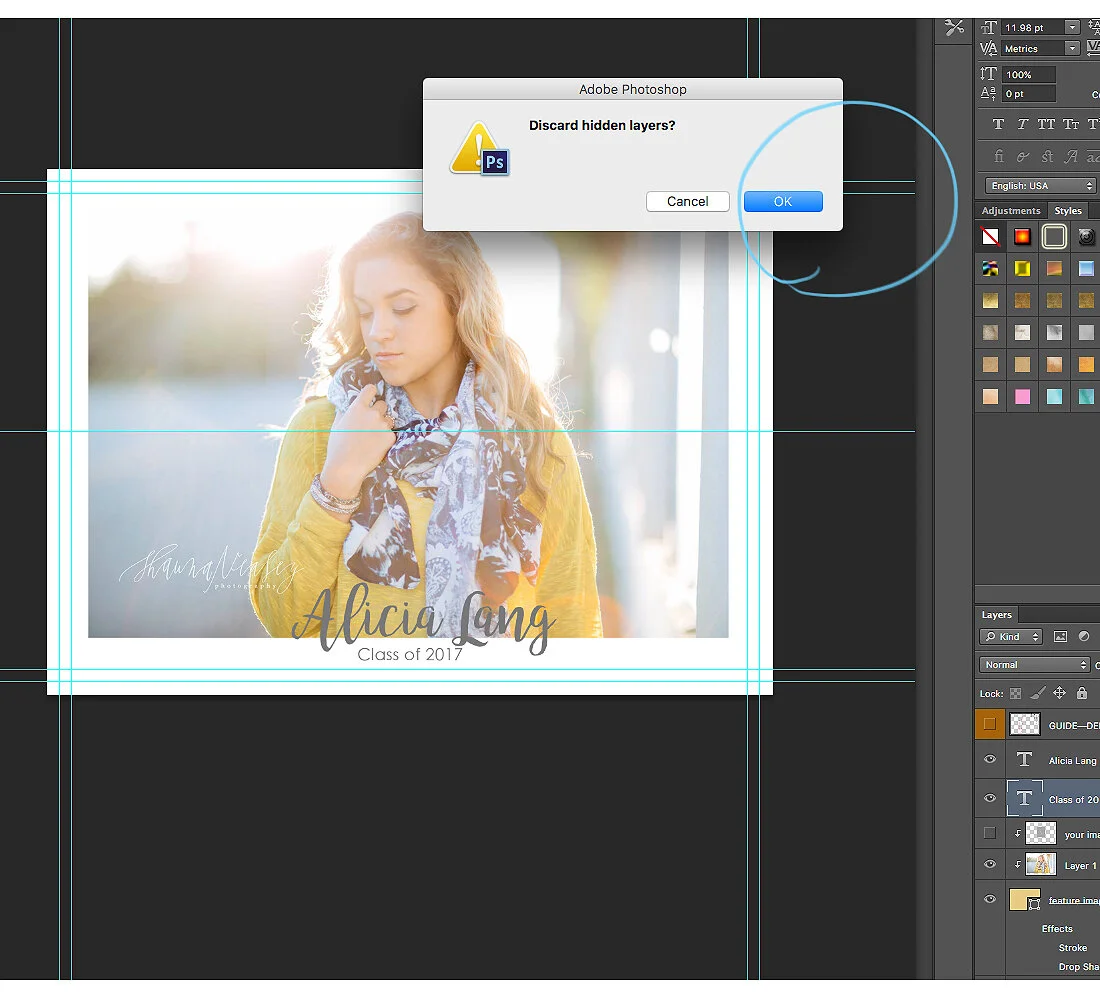
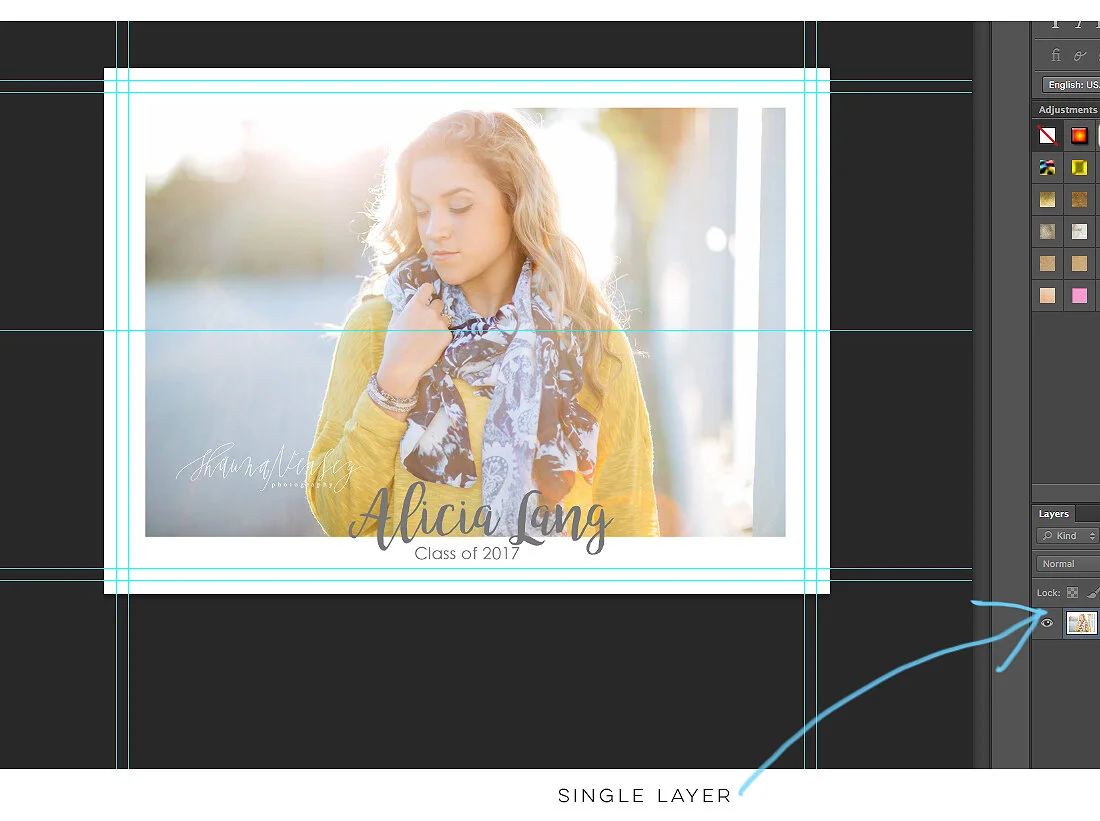
Once everything is perfect, you can flatten the layers by selecting…”Layer”…go to the bottom to…”Flatten Image”.

gcs_how to_6.jpg

It will ask if you want to discard hidden layers, click “ok”.

gcs_how to_7.jpg

Now it’s in a single layer.

gcs_how to_8.jpg

Step 9

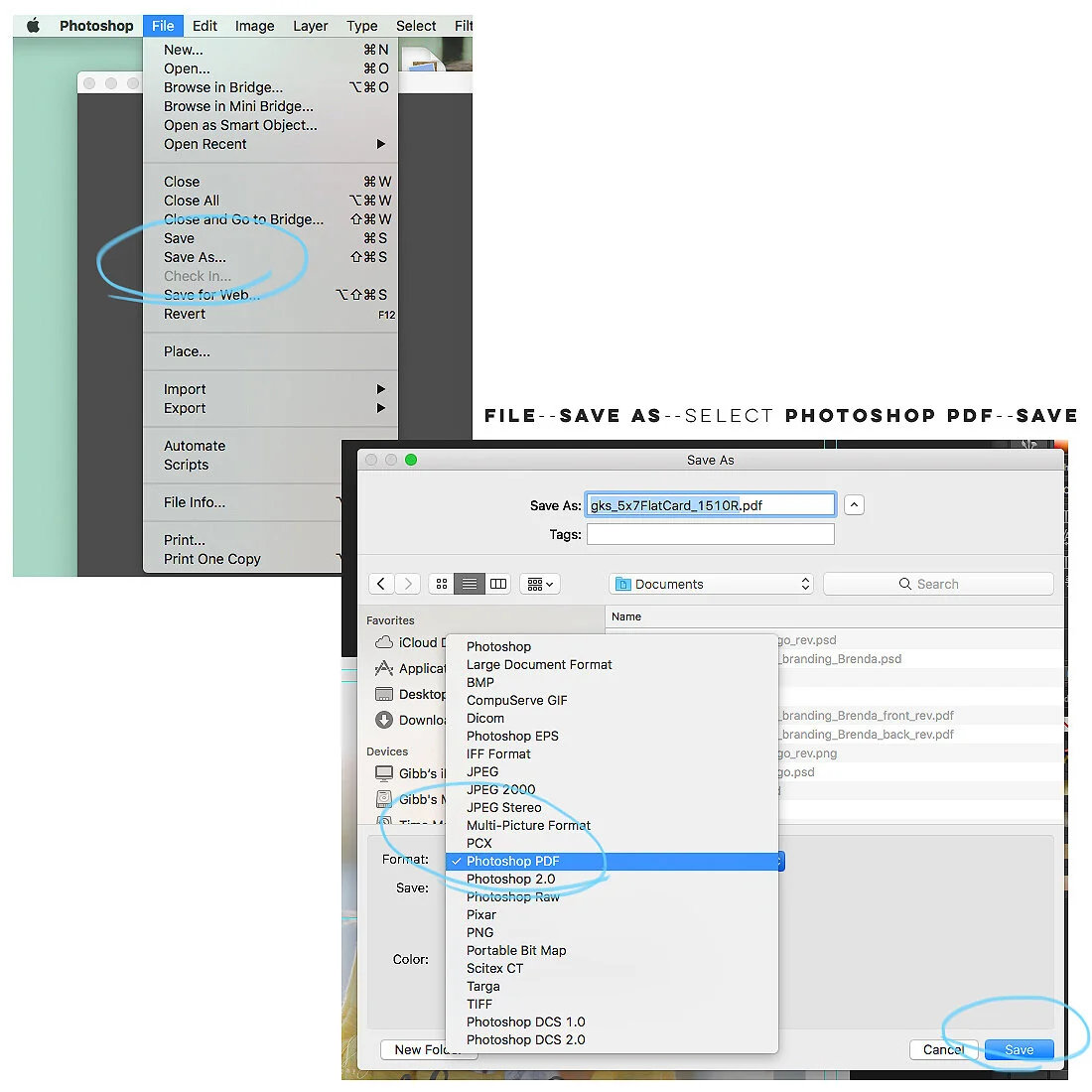
Click “save as” and select the Photoshop pdf format. Be sure to name it with your name.

gcs_how to_9.jpg

And that’s it! Pretty easy, right?!

Now you can upload it to your favorite online print vendor. 

If you plan to use a professional printer, I recommend Prints of Love.  My shop has partnered with them to offer fast, high quality yet affordable printing.  Plus free 2-3 day U.S. shipping and free envelopes!

Also be sure to check out my tutorial on inserting a photo into a clipping mask with Photoshop here.

Until next time, happy designing!

Gibb


In Illustration, Photoshop, Tutorial
gcs_blog_feature photo_blue mothers floral card.png

Watercolor Time Lapsed video

May 1, 2019

Painting has always been cathartic for me. It eases the stress away, that’s what’s so great about watercolors. It’s not expensive. All you need is paper, a brush and a cup of water.

No need to fear being judged. Watercolor is very forgiving. If you “mess up” you can flood the area with water and happily dab up the paint.

How awesome is that?!

My father is a master while I dabble and I’m okay with that. I used to sit in on his classes and workshops and play while he taught. He has a fine artist’s approach and I have an illustrator’s approach.

It’s all good.

I don’t have a photo realistic take on watercolor painting. My take is more whimsical and not entirely real but I have loads of fun painting. 

Check out my time lapsed video on painting whimsical blue flowers. Maybe it’ll help get you started. Turn on your favorite music, have a mini dance party and get started.

I’ve included a link to a freebie Mother’s Day printable card as part of our Freebie Library. So be sure to subscribe for access.

Also be sure to check out my post on Things to Know for Beginner Watercolorist.

Happy creating!

Gibb

In Illustration, Tutorial, Watercolor

Latest Posts

Featured
Sep 30, 2020
How to DIY your Christmas Photocard with Templett with video
Sep 30, 2020
Sep 30, 2020
Oct 13, 2019
How to Edit & Print Place Card templates using Templett - Part 4 in Templett Tutorial series
Oct 13, 2019
Oct 13, 2019
Oct 7, 2019
How to Add a Photo to your Photocard template using Templett - Part 2 in Templett Tutorial Series
Oct 7, 2019
Oct 7, 2019
Oct 5, 2019
How to Edit and Print a Template using Templett - Part 1 in Templett Tutorial Series
Oct 5, 2019
Oct 5, 2019
Oct 4, 2019
Step-by-step guide on how to insert photos into a clipping mask with a Photoshop PSD template
Oct 4, 2019
Oct 4, 2019
Aug 2, 2019
Beginner's Step-by-step guide on how to insert photos into a Photoshop PSD template
Aug 2, 2019
Aug 2, 2019

Subscribe

Sign up with your email address to receive news and get access to our Freebie Library.

We respect your privacy.

Thank you! Your Freebie Library password is:

pbandj

Thank you!

Gibb

Custom save the date for a destination wedding
Italy vibes
Custom trifold mockup for a client's Chicago wedding event.
We almost didn't go to Grand Central Station because we were so tired but I'm so glad my brother made sure I didn't miss it. Stunning in real life.
New Orleans custom wedding map for a client. Love taking my kids there...incredible food and music, stunning architectural details and interesting history.
Inspired by my mom's love for blue and white porcelain containers.
Tropical semi custom collection with custom map
Happy Mother's Day to all the moms, bonus moms and single parents who are both mom and dad! Hope you're enjoying your special day.

Powered by Squarespace