• Home
  • Shop
  • About
  • Disclosure Policy
Menu

Gibb+Co Studio

  • Home
  • Shop
  • About
  • Disclosure Policy
gcs_blog_feature photo_happy fall sticker file.jpg

Fall Sticker Freebie

October 7, 2020
 

Fall is my favorite season. I love the colors, the cooler weather and the excuse to wear fall season clothing. My fellow Floridians can totally relate to this. We basically live in paradise but it’s definitely nice to have a change of season.

This post and the photos within it contain affiliate links. If you purchase something through the link, I may receive a commission at no extra charge to you.  Full disclosure here.

Today’s freebie is dedicated to “Happy Fall”. I used the app Procreate on my iPad to create this cute little sticker design for my subscribers. If you have a Cricut or Silhouette machine you can use the sticker design to print and cut your very own stickers to decorate your planner!

Taking Skillshare classes has really improved my creative game. From Skillshare I learned how to draw on Procreate and how to letter in the modern calligraphy style of writing. If you haven’t signed up for Skillshare, you can use this link to get two free months of classes! They have so many types of classes beyond creative skills try the classes from business, marketing, lifestyle, photography, music, writing and more. I have a watercolor on there so be sure to check my class out. :-)

Also, I’ve created a time lapsed video for those wanting to see how I used Procreate to create the Happy Fall sticker design. The Freebies can be found in the Library for subscribers. As always, freebies are for personal use only. By downloaded my files you accept my policy. If you haven’t subscribed, you can sign up below. Have fun!

This is a time lapsed video on how I used Procreate to create Happy Fall sticker design. If you have a Cricut or Silhouette machine, you can download the tra...

Happy creating!

Gibb

In Freebie, Illustration Tags painting, illustration, freebie
gcs_blog_feature photo_christmas photocard diy.jpg

How to DIY your Christmas Photocard with Templett with video

September 30, 2020

Who doesn’t want to save money? Templett is an awesome online app you can use right in your browser without downloading ANYTHING!  

Read on for a step by step video tutorial on inserting your photo for a unique DIY Christmas Photocard.

This post and the photos within it contain affiliate links. If you purchase something through the link, I may receive a commission at no extra charge to you.  Full disclosure here.

First off, you can purchase so many template options in the ETSY marketplace. While this post focuses on using Templett online app, some shops sell templates for Photoshop templates (for photographers & creatives who know how to use Photoshop, see my post here on using photoshop templates), while others use Corjl app.

This tutorial is specifically for Templett app photo cards. My shop for Templett Christmas photo cards can be found here.

The only requirement is you have to edit using your desktop computer or laptop. At the time of the writing, you aren’t able to use your phone or tablet to edit your information. Sorry. Maybe things will change in the near future. Hopefully. J

Once you purchase the template, you will be sent a login from Templett. Sometimes it ends up in your spam or junk folder so be sure to look there. If you don’t have the original email link from Templett, you can still access your templates using the ETSY order number and the email associated with ETSY.

You can watch the video below or read the step by step instructions beneath the video.

This video is about Using Templett app for you Photocard

Step 1

Once login is successful, you will need to click on the “templates” icon to access your purchased templates…see below.

Step 2

You can now see all the templates you purchased appear. Simply click on the template you want to edit. If you already have a Templett account, maybe you purchased a previous Templett template, your new template will be added to your account library.

Step 3A - for most of my photo card templates

Upload your image.

Click on “Elements”, then “new elements”.

It will prompt you to find your image from your computer files and ask you to insert a tag name. I usually use a brief description. After doing so, you can click on the “add” button. Depending on the file size, it may think for a few seconds, then say “element added” with a check mark.

Then you can go back to the “elements” icon and you should see your image in the library.

Click on the image and it will appear in your template.

You can scale the image up or down using the upper or bottom corners. Once it’s the size you like, you need to send the photo back behind the artwork using the “send backward” icon.

Click on the text box to edit in your family name. The text box should have blue squares at each corner and along the midpoints. Resize by adjusting using the corner square while holding down “command” for mac users or “control” for pc users on your keyboard. Be sure to use the combination to get a scaled proportion adjustment.

 You can add an additional text box, by clicking on the “text” icon and typing within the text box.

You can change the font if you prefer something else by clicking on the font for the drop down options.

Step 3B - for my more complex watercolor photo cards in which the artwork is large

Upload your image.

Click on “Elements”, then “new elements”.

It will prompt you to find your image from your computer files and ask you to insert a tag name. I usually use a brief description. After doing so, you can click on the “add” button. Depending on the file size, it may think for a few seconds, then say “element added” with a check mark.

Then you can go back to the “elements” icon and you should see your image in the library.

Click on the image and it will appear in your template.

You can scale the image up or down using the upper or bottom corners.

Once it’s the size you like, you need to send the photo back behind the artwork using the “send backward” icon. IMPORTANT — due to the layers involved with my more complex designs, keep clicking on the “send backward” icon until your images is under the frame layer as well as the text and artwork layers.

Click on the text box to edit in your family name. The text box should have blue squares at each corner and along the midpoints. Resize by adjusting using the corner square while holding down “command” for mac users or “control” for pc users on your keyboard. Be sure to use the combination to get a scaled proportion adjustment.

 You can add an additional text box, by clicking on the “text” icon and typing within the text box.

You can change the font if you prefer something else by clicking on the font for the drop down options.

IMPORTANT — IF YOU NEED TO MOVE THE IMAGE/SHIFT UP OR DOWN OR LEFT OR RIGHT, YOU WILL NEED TO MOVE THE ARTWORK LAYER FIRST — SEE VIDEO around 2:45 mark. WHEN YOUR IMAGE IS IN THE CORRECT LOCATION YOU CAN SHIFT THE ART WORK LAYER BACK IN THE ORIGINAL POSITION.

Step 4

Once all editing is complete and you’ve checked the spelling, you need to SAVE your changes. DOUBLE CHECK YOUR SPELLING AS THERE IS NOT A SPELLCHECK in the Templett system at the time of this writing.

When you’re ready to download, click “download” which will prompt you to select from the dropdown menu…pdf, jpeg, and png options.

If you plan on using a professional printer,most prefer a print ready formatted pdf with bleed all around. To download that option, see below…you need to select the “show bleed” then “create pdf”.

If you plan to use a professional printer, I recommend Prints of Love.  My shop has partnered with them to offer fast, high quality yet affordable printing.  Plus free 2-3 day U.S. shipping and free envelopes!

Templett will think for a few minutes while it prepares the file. Once it’s ready, it will show the prompt in the upper right hand side of your window…see below. Click on “download now”. You will be able to find it in your download folder. If you don’t see it, you can search for “templett” among your downloaded files and it will appear.

If your print vendor prefers a jpeg format, downloading in a jpeg format is what you’ll want to select. I would select the 300 dpi for high resolution.

If you plan on printing at home and saving paper with a 2 per page formatthat you trim yourself, you will need to select, “download”, “pdf” then make sure “show bleed”, “show trim marks”, and “save paper” have been selected before you select “create pdf”. 

Once the download is ready, click “download now”. You will see the 2 per page format…see below. When printing yourself, use white card stock paper and use the front trim marks as a guide to trim the invitation down to the finished size. I recommend A7 envelopes like these, which you can also customize and print the recipients names as well as your return address. See here to the tutorial.

If you plan on posting to your social media, or emailing, or texting, downloading in a jpeg format is what you’ll want to select. I would select the 300 dpi for high resolution.

Hopefully my video tutorial has helped you edit your template.

In case you missed it, check out the Templett tutorial series…

Part 1…How to edit and print a template using Templett

Part2…How to Add a Photo to your Photocard template using Templett

Part 3…How to edit and print envelope templates using Templett

Part 4…How to edit and print place card templates using Templett

Happy designing!

Gibb

In Templett, Tutorial, Watercolor
gcs_blog_feature photo_aloe video tutorial.jpg

Watercolor Beginner Tutorial + Freebie Puny Aloe Printable Card

September 23, 2020
 

I painted this aloe for my very puny, very beautiful oldest mermaid. Something about puns cracks her up and now our running family jokes revolve around puns.

Check out this video tutorial where I walk you through how I painted this aloe. I walk you through the colors I’ve used along with the approach and reasons. For those interested in starting watercolor painting, it’s super fun. Watch the video and see how easy it is. You don’t have to use fancy watercolors. I give you alternative names for colors to use rather than a specific name.

I’ve also put the puny printable card in my bank of freebie items. If you’re a subscriber, feel free to head on over to download your copy.

gcs_blog_freebie_aloe dahling.jpg

Also, I’ve created a time lapsed video for those wanting to play and paint. The Freebies can be found in the Library for subscribers. If you haven’t subscribed, you can sign up below. Have fun!

How to paint an aloe plant for the beginner. Watercolor painting tutorial with oral explanations on how I paint an aloe plant. Music credit: www.musopen.org ...

Happy painting!

Gibb

In Freebie, Illustration Tags painting, illustration, freebie
gibbcostudio_instagram template_northern lights.jpg

How to paint a watercolor Northern Lights mini landscape painting

April 22, 2020

Seeing the northern lights in person has been on my bucket list since FOREVER. There’s something magical about them. Check out my video tutorial on how I painted the mini landscape. It was so much fun and it was quick! Try it out and enjoy your own mini landscape art perfect for art in your home or give as a gift.

This video is about How to paint the northern lights mini landscape using watercolor with a walk through on how I approach watercolor painting. I'm a self ta...

Happy painting!

Gibb

gibbcostudio_skillshare_tropical watercolor.jpg

I created a Skillshare class

April 16, 2020

For years I’ve taken Skillshare classes to learn specific creative skills. You can learn various bits and pieces through youtube, but there’s so much you have to sort through to find the good ones. While Skillshare is very specific in the classes and allows you to learn specific skills as if you were taking a class with modules to break down the skills and a class project to show your understanding or application.

This post and the photos within it contain affiliate links. If you purchase something through the link, I may receive a commission at no extra charge to you.  Full disclosure here.

I’ve learned:

bounce lettering

I created my logo using this class — see above logo

surface pattern design

I have created lots of digital patterns/paper for my shops like these…

gcs_style_Charlotte_dpp_1.png
gcs_WD_Blanche_style_dpp_1.png
gks_digital paper pack style_janie bird feature.png

and more. Check out my Whimsical Digitals ETSY shop for more digital patterns and clipart.

brushed up on photoshop

Taking these classes has helped me tremendously on many things related to my shops and improved my workflow and what I’m able to offer.

learned some new Adobe Illustrator tips

Again improving the two skills have helped me create logos like these…

style_roses_BL221C.png
gcs_BL187A_BayouBelleEvents_final.jpg


Toile Patterns

I can know more about Toile patterns and the history behind the design. I have so many ideas for my own modern Toile patterns that I hope to create soon.

digital painting on Procreate

Getting an iPad and Apple Pencil and learning Procreate was a game changer. It has helped me with my clip art shop Whimsical Digitals. See below for some examples of designs I created using Procreate.

gcs_WhimsicalDigitals_Ashton_ca_full set_preview.png

creating characters

Creating cute characters is something I struggle with so I was happy to learn more about building characters. Below are some examples of the character illustrations I made for my clip art shop…

gcs_WD_HelloDolly_style_whimsy dolls.png
gcs_WD_WhimsyDoll_style_Best Day Ever.png

fashion illustration

I have always thought fashion illustrations were so beautiful and glamorous. The classes I took helped break down the steps and I was able to create this bridal invitation design.

style_roses_A H17 shower invitation.png

about art licensing

I’m still learning about this complicated subject from people in the business.

poster design

I have so many ideas for creating a few series and can’t wait to dive into this niche.

about social media

Instagram and Pinterest continues to be something I struggle with but having classes help make it more relatable and the step by step process helps make actions feasible.

content planning for blogs

Once I decided to start I blog, the classes have helped planning.

creating video content with a smartphone

This helped me create my youtube videos. :-) Still learning.

As you can see, I’ve learned so much from those classes that have helped my business. Inspired by these classes, every year I had “create a Skillshare class” line on my things to do list.

Every. Year. I love teaching my face-to-face classes so wanted to try at least.

But each year went by and as a single mom with three mermaids, there was never enough time in the day to tackle the creation of the class. Y’all know how it goes, don’t you? All the best intentions but somehow with so many fires to put out, it just didn’t get done.

One of the few positive things resulting from our quarantine is the additional time to learn or finesse new skills. Initially, I learned the making of videos to supplement my classes with my job as an Interior Design adjunct professor. Previously I’d dabbled in the making of a video…shooting on my iPhone, editing using iMovie and publishing onto Youtube time lapsed videos for students who needed to slow down the process from the comfort of their home. They weren’t award winning and frankly I cringe when I play them back but they did the job.

With the school’s Online class transition, I’ve really had to step up my game. I learned to edit faster, streamline my work flow, batch jobs, create better thumbnail cover images, etc. While I added videos for my design students, I decided to finally create a Skillshare class.

I’m so excited! I did it! {Insert visual of me doing a Snoopy happy dance here.} :-)

My class is about how I create a themed collection from start to finish—sketching, painting, scanning, editing in Photoshop and how you can use the design elements. Check out my trailer for the class below…

This is a Skillshare Intro trailer for my class: how to create a themed tropical watercolor collection from painting to editing in Photoshop. Sign up for 2 m...

Use this link to sign up for 2 free months of Skillshare and try out my class and hundreds of others. They have classes in:

  • animation

  • creative writing

  • file & video

  • fine art

  • graphic design

  • illustration

  • music

  • photography

  • UI/UX design

  • web development

  • business analytics

  • freelance & entrepreneurship

  • leadership & management

  • marketing

  • lifestyle

  • productivity

so many classes! I continue to take classes to build my business but now, at long last, I am happy to include Skillshare Teacher on my resume. :-)

Enjoy!

Gibb

gibbcostudio_orchid.jpg

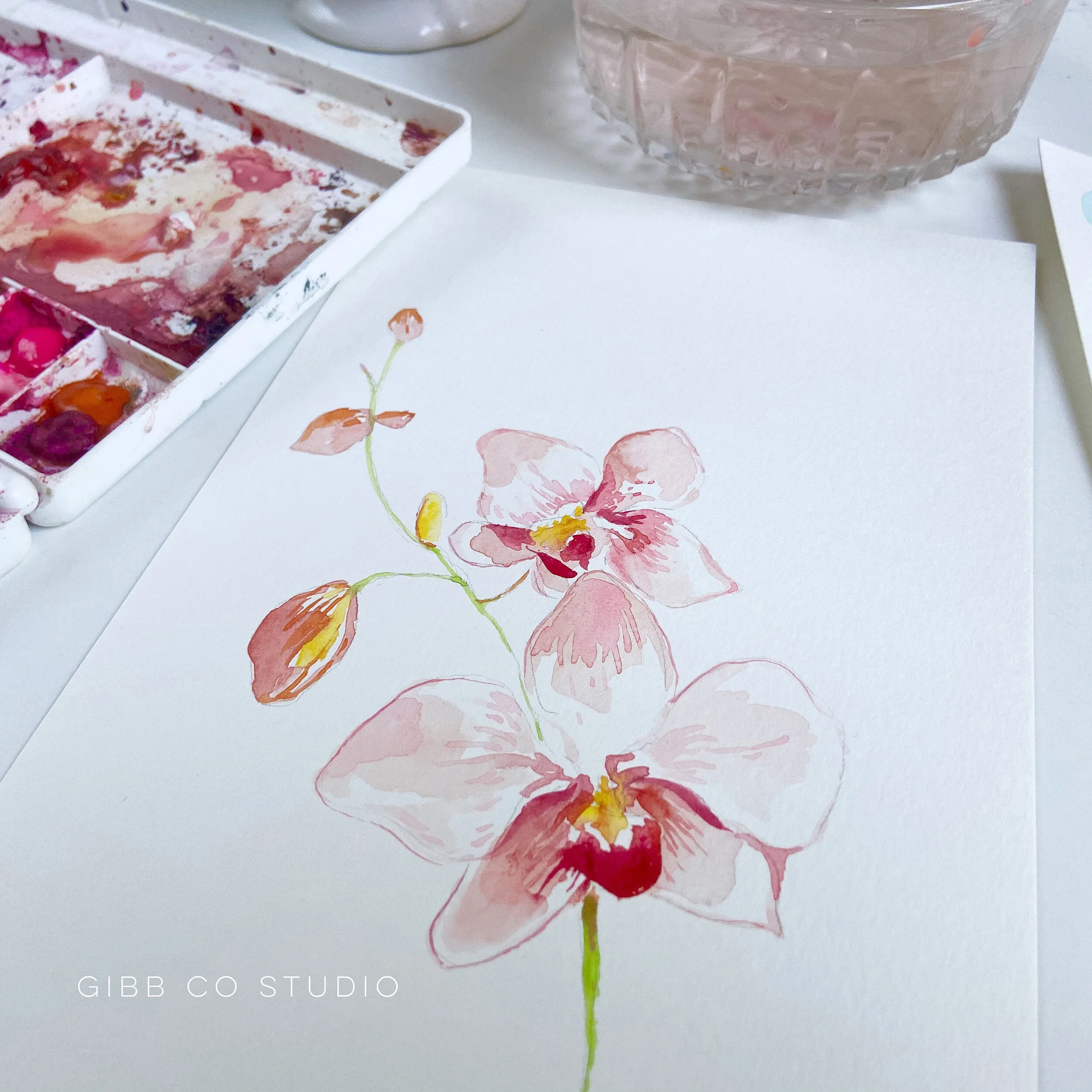
Painting a Watercolor Orchid

April 1, 2020
 

These last few weeks have been surreal to say the least. My kids have been home and we’ve all transitioned to online work/distance learning doing our part in helping to flatten the curve. Although my ETSY shops have taken serious hits along with so many others, I’m grateful my “day” job still exist. I’ve been busy learning how to translate my classes to be online.

With those efforts, I started working on more videos so my students get the full demonstration effects my classes are known for. I’ve really had to step up my game. I’m using this time to learn new things, trying new programs, improving my skills, etc.

In the interest of improving my video making skills, I put together a video on how I watercolored an orchid. With three kids and a puppy at home, I have VERY LIMITED QUIET TIME, so I recorded the video and did a voice over with instruction when I could. There was no way to talk as I recorded during the daytime.

Let me know your thoughts. Does a voice over work with time lapsed video? Or do you prefer live instructions as an instructor paints? Although I’m not sure how I’d do that short of taping everyone’s mouth shut as my studio is the family room…

Anyways, check out my video and subscribe if you’d like to see more watercolor videos I have in mind.

This video is about painting an orchid with watercolor with a walk through on how I approach watercolor painting. I'm a self taught artist using not so fancy...

Happy painting!

Gibb

gcs_blog_feature photo_how to paint whimsical florals.jpeg

Freebie Thank you card

February 28, 2020
 

It’s March in Florida which means gorgeous sunny weather with the occasional cold days. Of course it’s nothing like our northern friends experience but it allows us sweater and boot days.

This post and the photos within it contain affiliate links. If you purchase something through the link, I may receive a commission at no extra charge to you.  Full disclosure here.

I’ve painted some whimsical flowers and created some freebies…printable thank you cards as well as blank cards for you to personalize if you’d like. Add your name and print out personalized cards or if you want to practice your writing, you can personalize the card with the recipient’s name. If your writing isn’t legible and you want the pretty calligraphy look, you can support the designer of the font and get this pretty calligraphy font here from Creative Market.

gibbcostudio_february2020_floral.jpg
gibbcostudio_february2020_floral2.jpg

Also, I’ve created a time lapsed video for those wanting to play and paint. The Freebies can be found in the Library for subscribers. If you haven’t subscribed, you can sign up below. Have fun!

Time lapsed video of painting whimsical flowers Music credit BenSound "Hey".

Happy painting!

Gibb

In Freebie, Illustration Tags painting, illustration, freebie
gcs_get the look_cover_boho living blue.png

Boho Modern Living Room - Get the Look

February 17, 2020
 

Who doesn’t love the romantic free spirited loveliness of a well designed Boho interior? What’s not to love?

There aren’t any hard and fast rules to employ in this romantic eclectic style. Like neutral walls…go for it. Love color…that’s fair game as well.

This post and the photos within it contain affiliate links. If you purchase something through the link, I may receive a commission at no extra charge to you.  Full disclosure here.

Feel free to mix and match…modern pieces with vintage pieces. Mix textures and prints for added interest to your space. The boho culture is all about celebrating artists and free spirits. Add accessories that have a global appeal and show off the cultures you want to visit or if you’ve been fortunate, have already visited, for a great conversation starter.

Use natural or raw materials like wood, rattan, sisal, leather or hemp. The modern look is supported by the metal, further example of mixing textures.

Boho interiors calls for plants which is great for indoor air quality…BONUS!

See below, I’ve created a conceptual boho modern living room that has the boho elements as well as more modern pieces for a clean more grownup style to the boho whimsical style.

 
gibbcostudio_boho living room_blue.jpg
 

Pile your collection of art and travel books on the coffee table or stack them on the end table. Show off your album art, etchings anyone? Cool posters? Travel posters? Have fun and show it off. The truly great part of a Boho Interior space is the lack of hard and fast rules. Maybe that’s why I find it particularly appealing.

The minimalist selections helps achieve a clean, more streamlined and understated aesthetic. So it’s a more grown up look.

Boho interior spaces are casual.  So avoid fussy collections or materials. Floor cushions and poufs serve as both casual seating for extra guests and relaxing props to read, chill out, play Catan for world domination ;-) binge on Netflix, or gorge on sushi at the coffee table.

 
2 pt mood board_rev get the look.png

Floor lamp | Table Lamp | Artwork | End Table | Light Fixture | Metal End Table

Bowl | Lounge Chair | Coffee Table | Rug | Sofa | Tufted Sofa


Let me know your thoughts on my Boho Modern living space. Anything you would add to the space?

Until then, happy designing!

Gibb

In Interior Design Tags boho, modern, interiors, interior design, get the look
gcs_blog_feature_top10plannerstickershop.png

Top 10 Planner Sticker Shops We Love

October 15, 2019

I’m a doodler and I love my planner!

Seriously, there’s something about writing a list and checking it off. Highly satisfying.

But because I also like to doodle, I make notes and sketches EVERYWHERE!

I bought my first planner a few years ago in April on one of those clearance sales and fell in love. Before that I would journal in notebooks but the calendar aspect along with all those boxes to write in was a game changer. Add to that, the cute little STICKERS! Jeez. Game over.

This post and the photos within it contain affiliate links. If you purchase something through the link, I may receive a commission at no extra charge to you.  Full disclosure here.

Since then, I’ve gone through different planners and continue to supplement with stickers for fun.

The following are some planner sticker shops we love!

il_794xN.2048141839_gkry.jpg

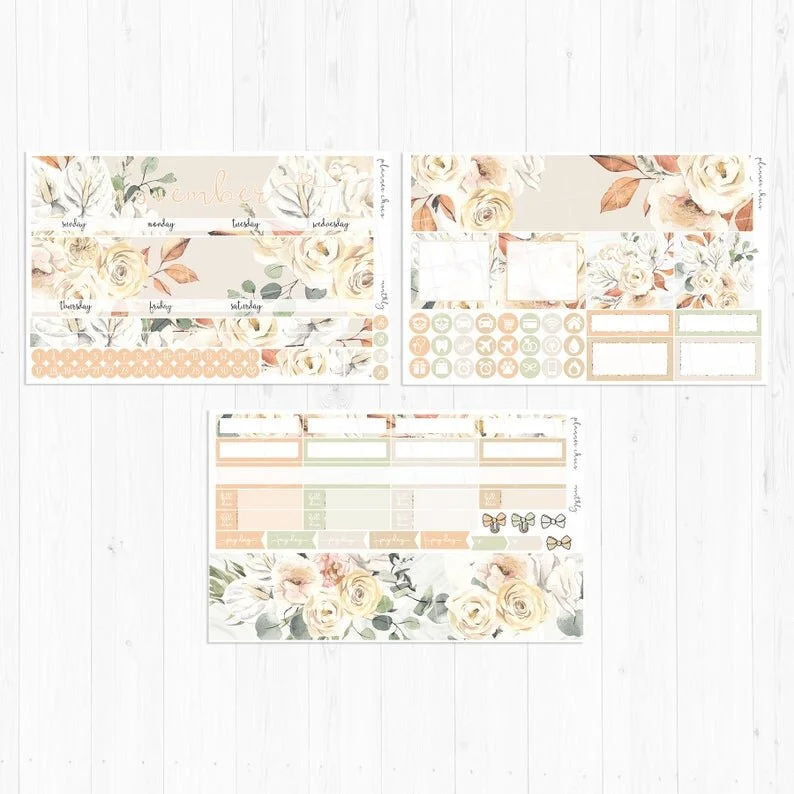
Planner Choco offers stickers for the ever popular Erin Condren planners.

il_794xN.1490353917_21vj.jpg

Love these happy colors and the ability to write in what’s due and be able to check it off once the bill has been paid! Check out Penelope Grace Co here.

il_794xN.1976874103_qe21.jpg

Jadore Planning offers pretty monthly kits using real foil for a spectacular effect.

il_794xN.2055183863_t562.jpg

Isabelle the Owl offers pretty kits with glitter effects.

il_794xN.2071100643_exso.jpg

Love the happy colors offers in Paper Loving Mommy.

il_794xN.1250464953_1jtr.jpg

Simple yet oh so cute and sassy. Love the mini offerings from the Pumpkin Paper Co.

il_794xN.1730111614_pym3.jpg

Love the humor and sass from Stick To Your Plans.

il_794xN.1663996038_lezf.jpg

Who can resist these adorable shopping stickers from Sweet South Sticker Co?!

il_794xN.2032727229_ih9t.jpg

Perfect for those who like to color! Check out StrawberryStickerCo!

il_794xN.2011578891_ijft.jpg

If you have your own silhouette or Cricut machine, check out these printable planner stickers from Plan So Cute! You can print AS MANY AS YOU WANT!

For those who want to try making their own stickers, check out this tutorial here. Maybe you’ll get so good at making stickers, you can open up your own shop!

Until then, happy creating!

Gibb

Older Posts →

Latest Posts

Featured
Sep 30, 2020
How to DIY your Christmas Photocard with Templett with video
Sep 30, 2020
Sep 30, 2020
Oct 13, 2019
How to Edit & Print Place Card templates using Templett - Part 4 in Templett Tutorial series
Oct 13, 2019
Oct 13, 2019
Oct 7, 2019
How to Add a Photo to your Photocard template using Templett - Part 2 in Templett Tutorial Series
Oct 7, 2019
Oct 7, 2019
Oct 5, 2019
How to Edit and Print a Template using Templett - Part 1 in Templett Tutorial Series
Oct 5, 2019
Oct 5, 2019
Oct 4, 2019
Step-by-step guide on how to insert photos into a clipping mask with a Photoshop PSD template
Oct 4, 2019
Oct 4, 2019
Aug 2, 2019
Beginner's Step-by-step guide on how to insert photos into a Photoshop PSD template
Aug 2, 2019
Aug 2, 2019

Subscribe

Sign up with your email address to receive news and get access to our Freebie Library.

We respect your privacy.

Thank you! Your Freebie Library password is:

pbandj

Thank you!

Gibb

Custom save the date for a destination wedding
Italy vibes
Custom trifold mockup for a client's Chicago wedding event.
We almost didn't go to Grand Central Station because we were so tired but I'm so glad my brother made sure I didn't miss it. Stunning in real life.
New Orleans custom wedding map for a client. Love taking my kids there...incredible food and music, stunning architectural details and interesting history.
Inspired by my mom's love for blue and white porcelain containers.
Tropical semi custom collection with custom map
Happy Mother's Day to all the moms, bonus moms and single parents who are both mom and dad! Hope you're enjoying your special day.

Powered by Squarespace